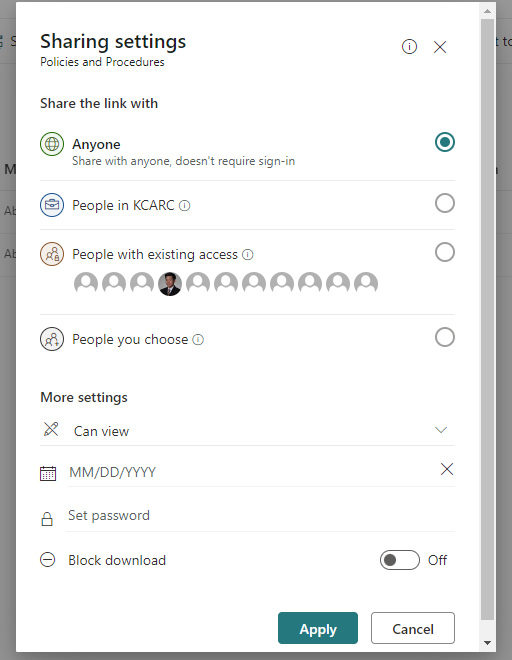
SharePoint's "Share the link with Anyone" is Greyed Out


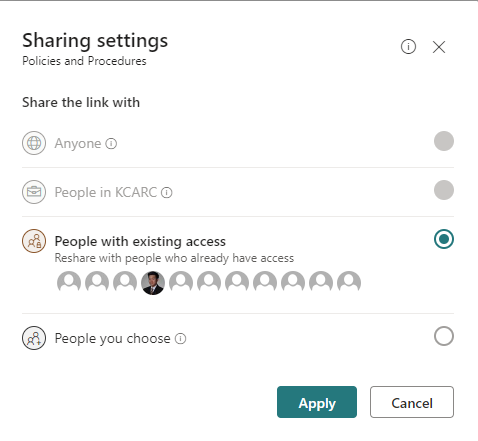
I ran into this problem where all sharing options are greyed out except "People with existing access".
Here are the steps to ensure, as an admin, you have granted enough permission for a certain site.
- Sharing Permissions at the Tenant Level
- Sharing Permissions at the Site Level
- Advanced Permission Setting at the Site Level
Sharing Permissions at the Tenant Level
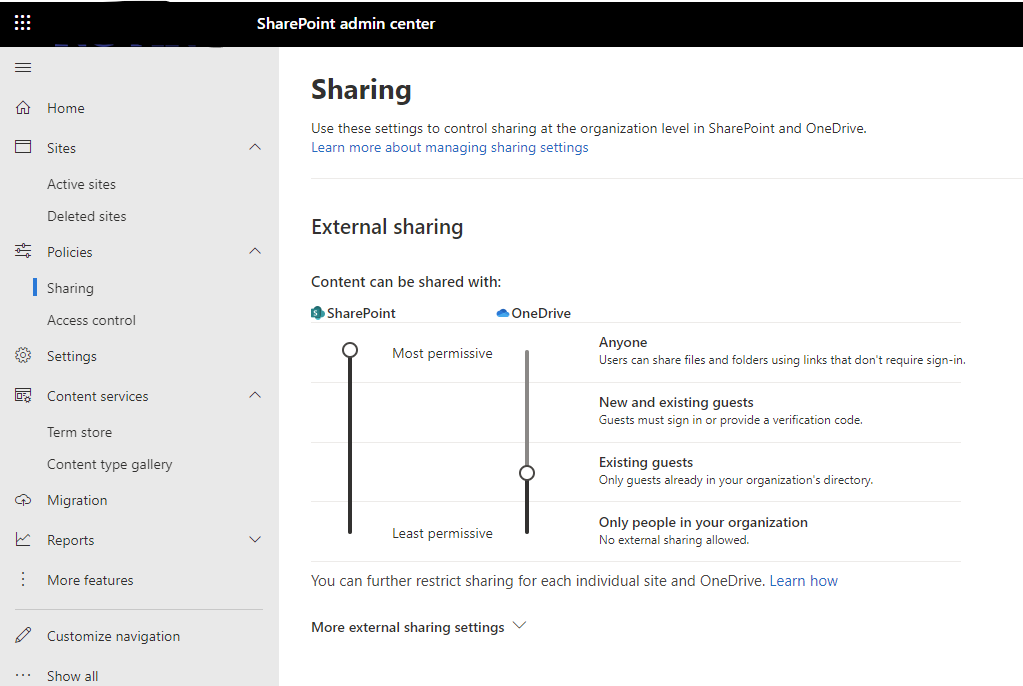
This is where you need to log into the SharePoint Admin Center. The URL should be youtenantname-admin.sharepoint.com or you can get redirected from M365 Admin Center. Once you are signed in, you want to go to the Sharing setting under Policies. Make sure you are allowing anyone for SharePoint's external sharing.
Sharing Permissions at the Site Level
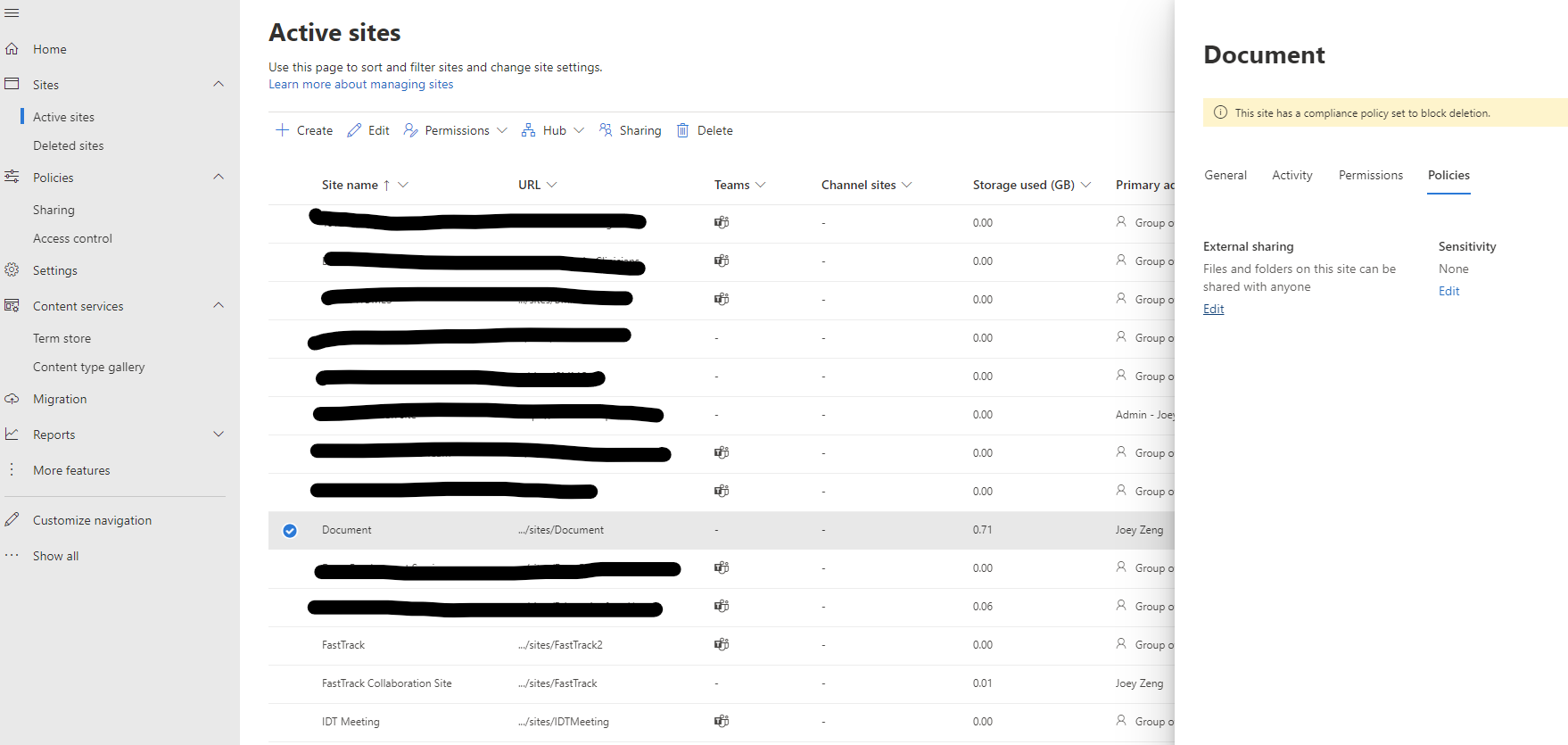
Individual sites can have policies override the tenant policies. We can head to active sites and make sure the external sharing policies are set for anyone.
Advanced Permission Setting at the Site Level
To have even more granular permission controls over a particular site, we can achieve this by fine tune the site settings.
- Visit your site with an admin account
- Click the gear button, and then select "site information" (site permission is another place you can fine tune but we will not cover here)
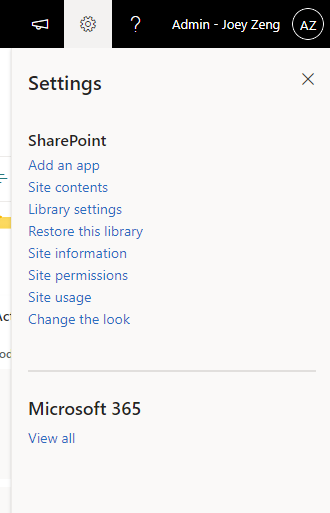
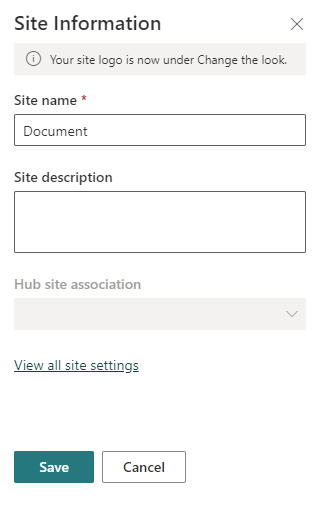
3. Click on "View all site settings"
4. Pick "Site collection features"
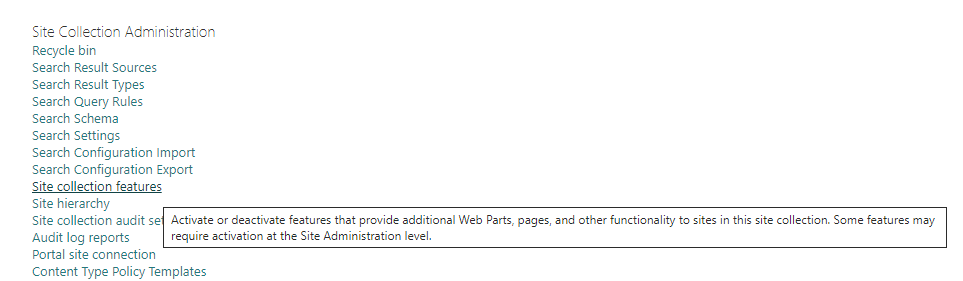
5. Make sure "Limited-access user permission lockdown mode" is deactivated

After deactivating the lockdown mode, I am finally able to sharing externally with anyone.